
B
BoazMar 30, 2026
Claude CodeAI CodingMemory Management
Prefer video? Watch on YouTube.
Using Claude Code well means one thing: delegating more.
The more you delegate, the better you're using it. Not as autocomplete. As a coding agent — an assistant. To actually use it as an assistant, you need two things: an environment that makes delegation possible, and a system that makes it remember you.
This covers both — basic usage and memory management. Latest features as of March 2026 included (/btw, Auto Dream, etc.).
There are three ways to install Claude Code: npm, Homebrew, and native install. The official docs recommend the native install.
curl -fsSL https://claude.ai/install.sh | shOne reason: auto-updates. npm or Homebrew requires manual version management. Native install handles it automatically. Delegate even the updates.
If you installed via npm or Homebrew, uninstall and switch to native install.
Running claude by itself starts in accept edits ON mode. You can toggle modes with Shift+Tab, but by default you only see two.
| Mode | Description |
|---|---|
accept edits | File edits are automatic, but every command requires confirmation |
plan | Read-only — builds a plan without making any code changes |
The accept edits mode has a limitation: you have to hit Yes/No every time a command runs. It breaks the flow.
To fix this, run with a different option.
claude --dangerously-skip-permissions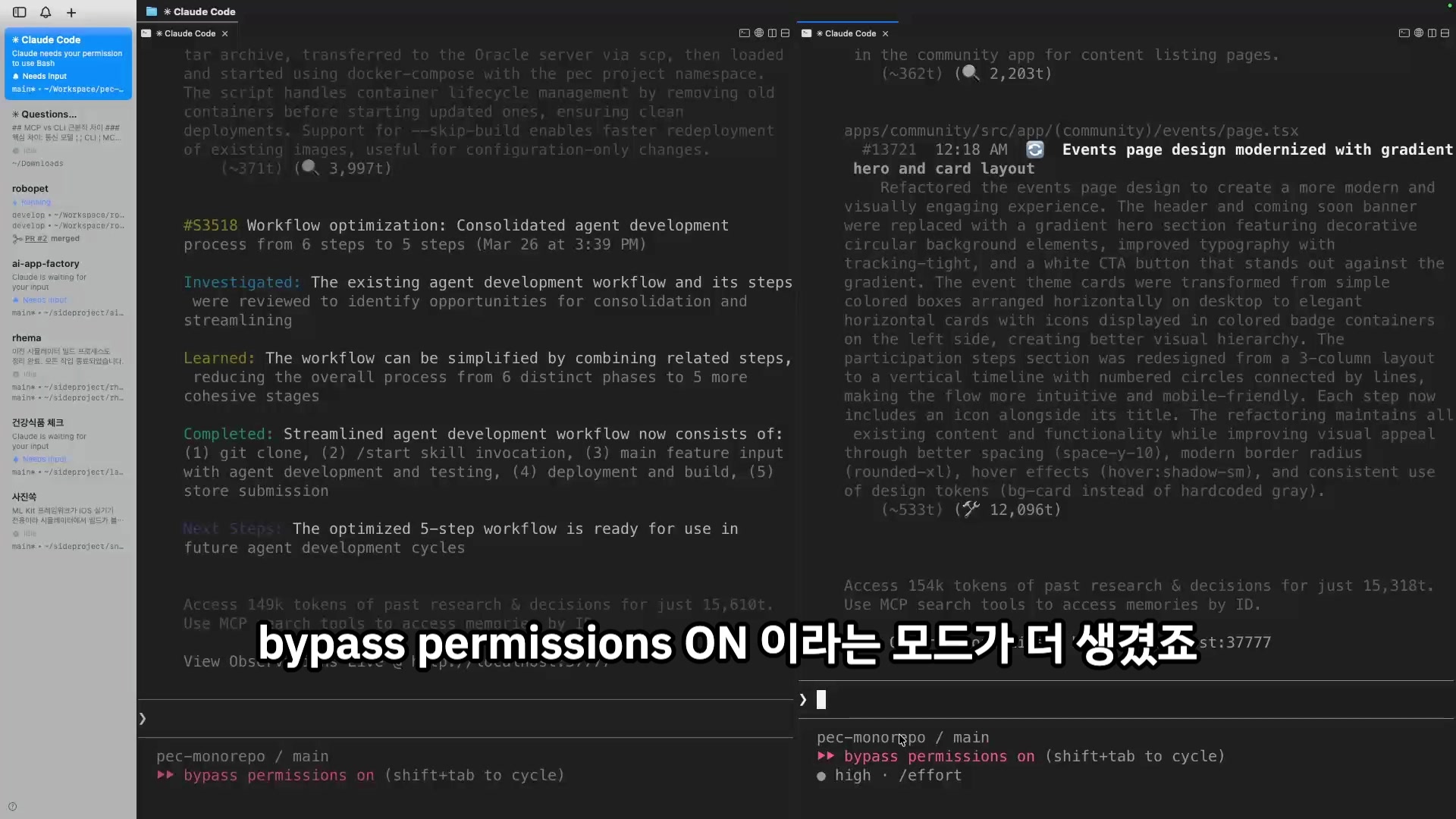
This adds bypass permissions ON mode. You're pre-approving all permissions for Claude. File edits, command execution — all automatic.
Dangerous? Real risk exists. But we're developers. Files get deleted, Git restores them. This mode matches the direction: delegate more.
--dangerously-skip-permissions is too long to type every time. An alias makes it simple.
alias cc='claude --dangerously-skip-permissions'Now just type cc to launch in bypass permissions mode immediately.
Once the environment is set up, it's time to actually delegate work. Start with the simplest tasks.
"Simple" here means tasks where you already know how to do it. UI design refactoring is a good example. We all know how to tweak CSS. You know what needs to happen, so it's easy to delegate.
@ — point directly at filesThe first thing to remember when delegating to Claude Code is @. It's the file reference feature.
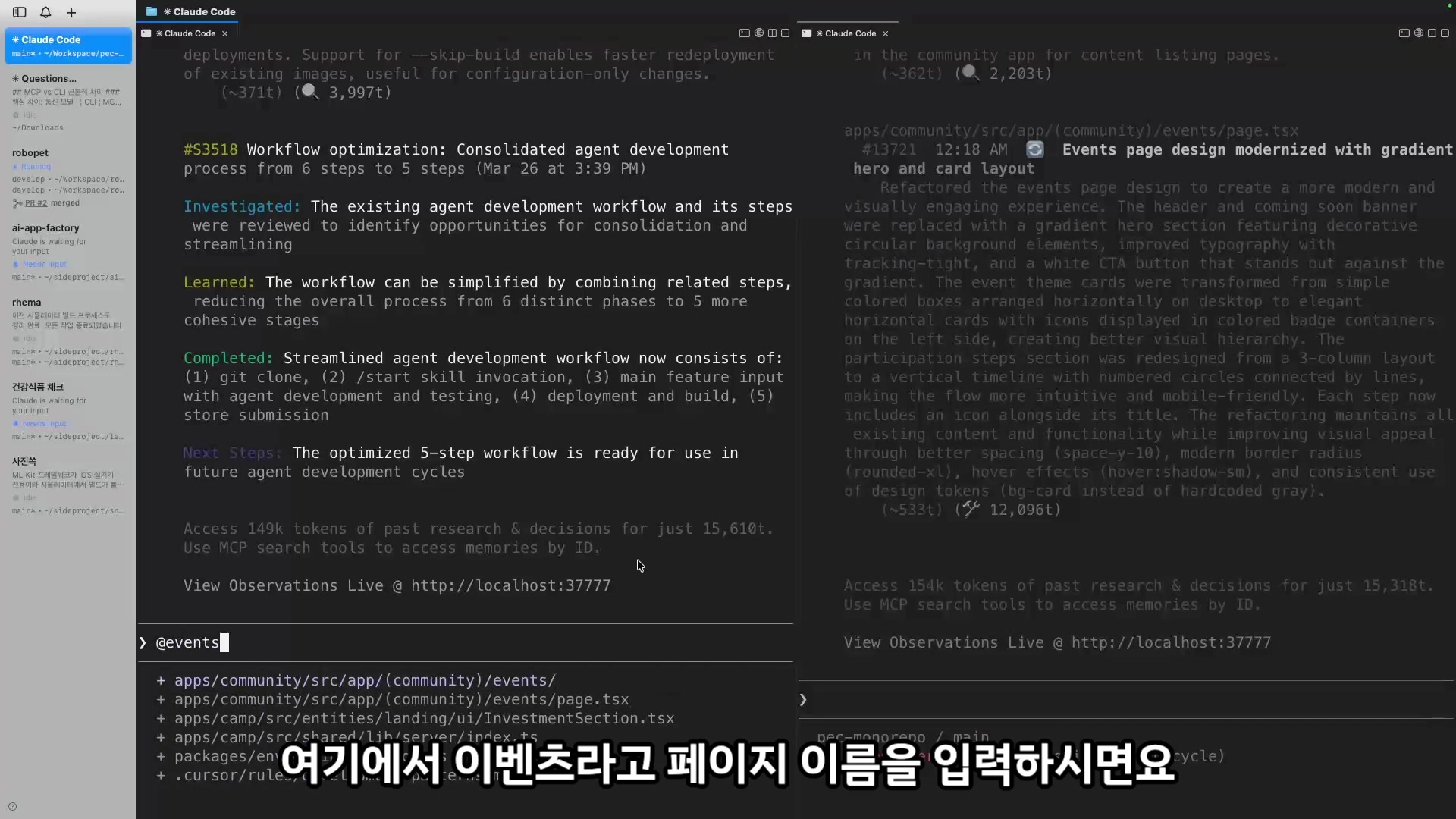
@events page needs a design refactorWith @, Claude Code can find and read the file directly. This can save up to 25% of context that would otherwise go to file exploration. Instead of wandering the codebase, it references the exact file.
/ — smarter with skillsSecond is / (slash). This invokes a Skill.
Refactor the design of @events page using /frontend-designYou don't need to know the details of each skill. Press / and a list of available skills appears. For now, think of it as "something that makes Claude Code smarter."
Two things to remember for simple tasks:
| Feature | Purpose | Effect |
|---|---|---|
@ | File reference | Save up to 25% context |
/ | Invoke skill | Claude Code works more precisely |
Once simple tasks are going well, it's time for more complex work: feature implementation with multiple steps.
Real example. I was extending the rendering component for article pages. It started with Markdown only, then Mermaid diagrams were added, and most recently it was extended to include a server component for HTML visualizations.
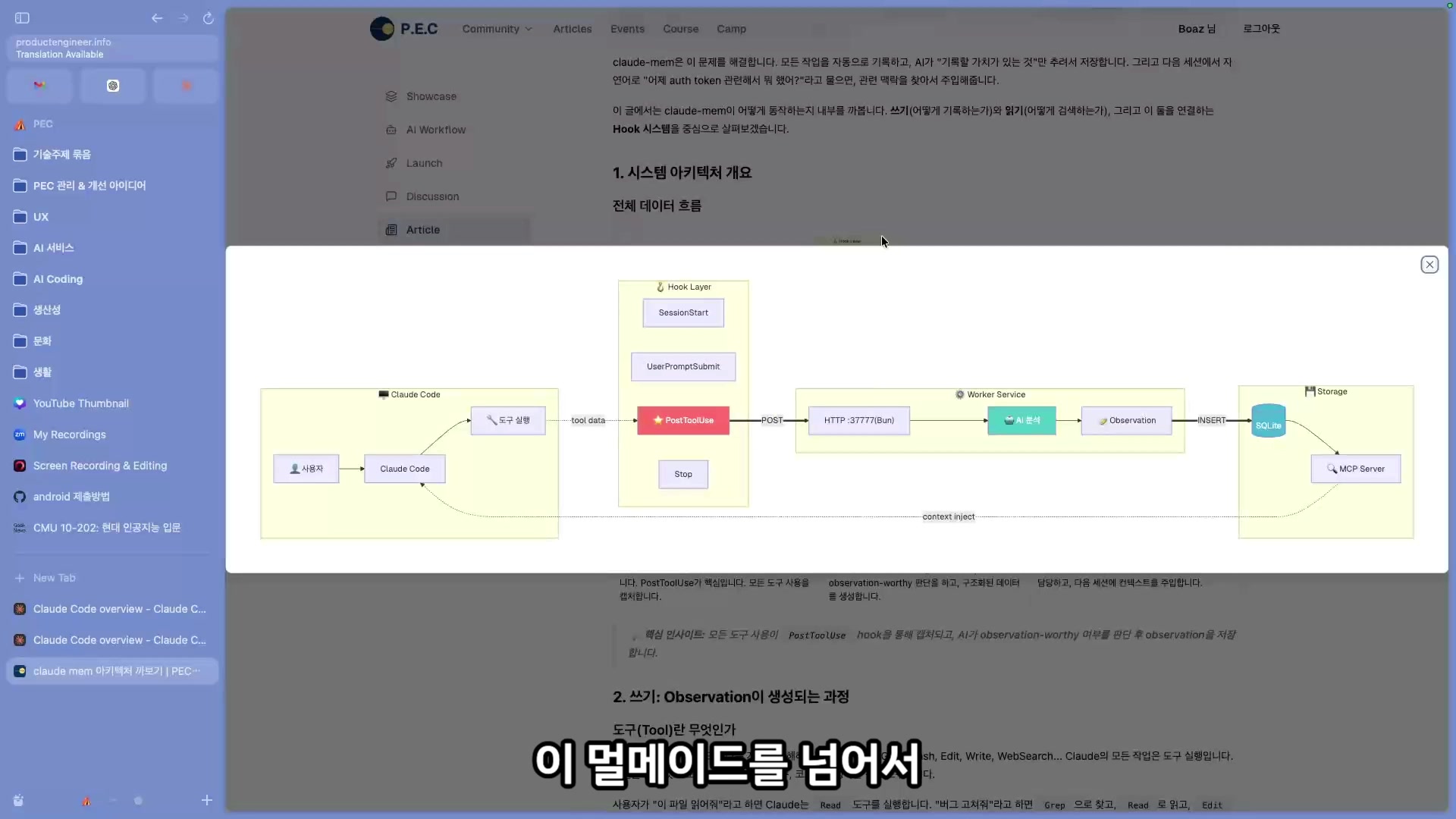
You don't just dive into coding for this.
You need these steps, which is why you use Plan mode.
Select Plan mode with Shift+Tab, then enter the prompt.
Going to extend the article rendering component.
Need to show MD, Mermaid, and HTML visualizations.
In Plan mode, Claude Code doesn't modify any code. Instead it reads the codebase and builds an implementation plan. This exploration can take a while. If something comes up mid-process —
/btw — ask questions without interrupting the work/btw stands for "By The Way." It lets you ask questions in parallel while the agent is working.
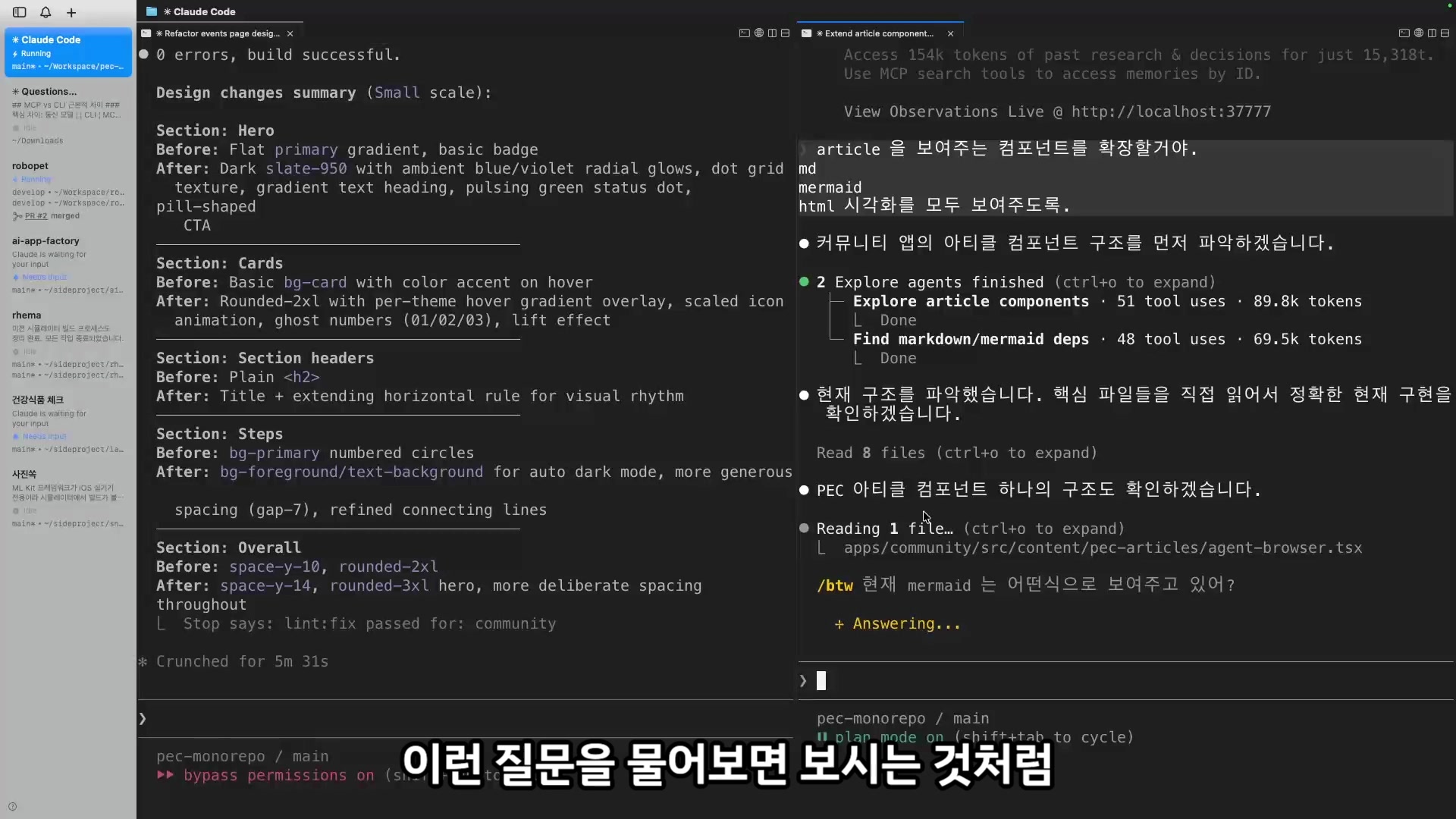
/btw how is Mermaid currently being rendered?The key: you can ask questions without stopping the agent's work. Questions and answers via /btw don't get added to the conversation history — so they don't consume context.
| Property | Description |
|---|---|
| Context usage | Not logged in conversation → saves tokens |
| Parallel execution | Instant answer without interrupting the agent |
| When to use | During long agent sessions in Plan mode, Bypass mode, etc. |
After Plan mode runs, Claude Code may ask clarifying questions about direction after exploring the codebase. Answer them, and the plan agent completes the implementation design. The design gets saved as a Markdown file in .claude/plans/.
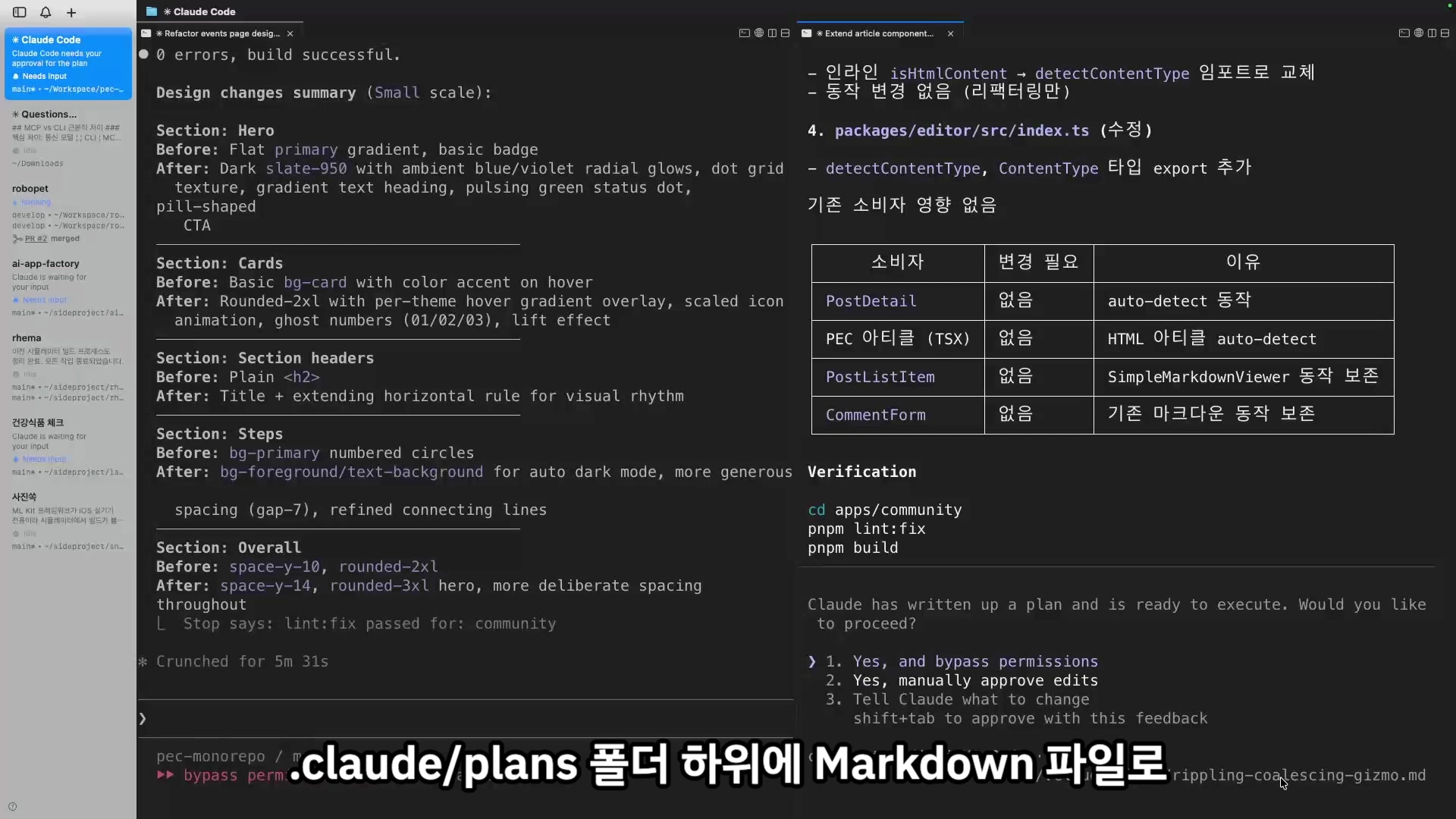
Review the plan. If it looks good, select "Yes, and bypass permissions" to start implementation. You can still use /btw during implementation — things like "is this refactored enough?" while the code is being written.
One thing worth being clear about.
You're not just using Plan mode for the sake of it. You use Plan mode when you need to communicate your intent more precisely. For complex multi-step features, aligning on "go this direction" first is crucial. That's how Claude Code performs the way you intended.
Delegate more, but make it execute better. Plan mode is the key.
This is where we move into the second axis: memory management.
Keep delegating and you'll notice it gradually adapting to you. Not an accident. Claude Code remembers.
The most important thing about this memory is where you run it.
Whichever folder you run Claude Code from, the conversation gets logged as memory at that location.
~/.claude/projects/<project-path>/memory/Run from project A, it goes to A's memory. Run from project B, it goes to B's memory. Each run location has its own separate memory.
The key: it's not necessarily about always running from the project root. Run from wherever you want this conversation remembered.
Why does memory matter?
More memory → better adapted to you → more you can delegate → even more memory builds up.
This virtuous cycle is why it matters.
Claude Code's memory management has two mechanisms.
| Auto Memory | CLAUDE.md | |
|---|---|---|
| Written by | Claude, automatically | Developer, manually |
| Contents | Build commands, debugging insights, code style, etc. | Rules to prevent mistakes, project-specific notes |
| Loaded when | Every session start (first 200 lines of MEMORY.md) | Every session start (full file) |
Auto Memory is exactly what the name says — automatic. Claude Code writes down things it thinks "I should remember this" as Markdown files during the conversation.
Type /memory to see the list of memory files loaded in the current session.
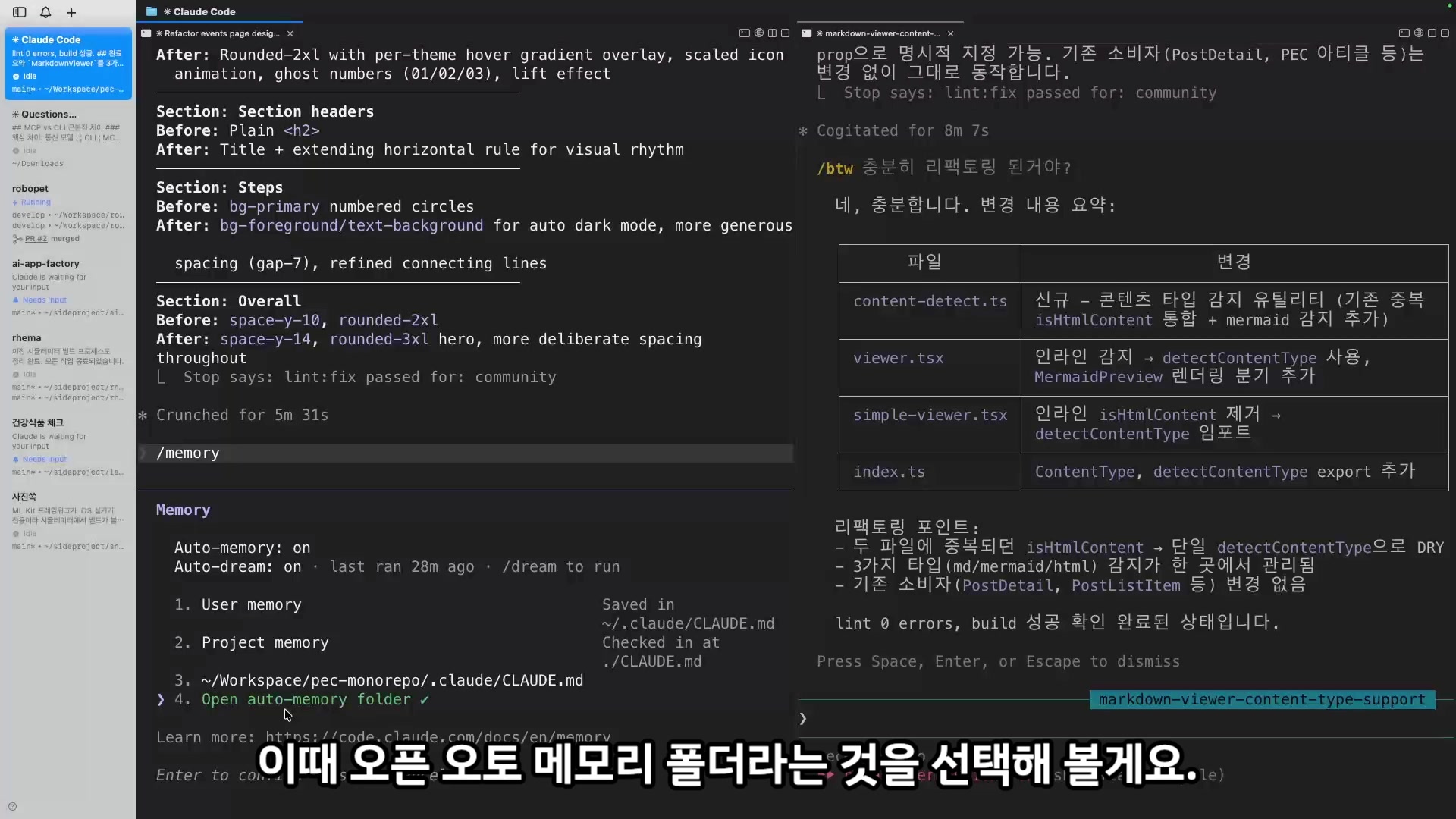
Select "Open auto memory folder" to view the actual memory files. Since they're just files, you can read, edit, or delete them. Auto Memory is on by default — no extra setup needed.
If Auto Memory is automatic, CLAUDE.md is manual. Memory you write yourself.
Start with a blank slate. Then, when something goes wrong while working with Claude Code — when it goes to B when it should have gone to A — don't write "don't do B." Only write the solution: "do A."
# CLAUDE.md

## Build
- When running expo install, temporarily delete .npmrc, run, then restore it (prevents nx conflicts)

## Code Style
- Import order: React → external packages → internal modules → types
These are often project-specific solutions, not general advice. Things Claude Code can't infer from just reading the code. That's why you write them down.
CLAUDE.md is loaded in full at the start of every session. The official docs note that going over 200 lines can reduce the rate at which rules are followed.
Size: target under 200 lines per CLAUDE.md file. Longer files consume more context and reduce adherence. — Claude Code official docs
Two approaches.
First, split files with @. Inside CLAUDE.md you can reference other files with @path/to/file. Move longer content to separate files and let Claude read them as needed.
# CLAUDE.md
@docs/api-conventions.md
@docs/git-workflow.md
Pro tip: You can bring in
@AGENTS.mdto share instruction files across different AI agents.
Second, put CLAUDE.md in subdirectories. CLAUDE.md doesn't have to live only at the project root. You can create CLAUDE.md files in subdirectories too. Claude Code automatically loads them when reading files in that folder.
my-project/
├── CLAUDE.md           # Project-wide rules
├── src/
│   └── api/
│       └── CLAUDE.md   # API-specific rules
└── tests/
└── CLAUDE.md # Test-specific rules| Location | Scope | Use for |
|---|---|---|
~/.claude/CLAUDE.md | All projects | Personal preferences, global rules |
./CLAUDE.md | Current project | Team shared rules, build commands |
./src/api/CLAUDE.md | Specific subdirectory | Domain-specific rules |
Once you're managing memory with Auto Memory and CLAUDE.md, a natural question comes up. "These are just Markdown files — how do they stay up to date?"
There's a feature for that. Auto Dream.
Like how your brain consolidates memories during sleep. Auto Dream is Claude Code's automatic memory cleanup feature. That "Auto-dream: on" you saw in the /memory screenshot earlier — that's this.
| Feature | Description |
|---|---|
| Deduplication | Merges similar content recorded across multiple sessions |
| Freshening | When there are contradictions, updates to the latest version |
| Restructuring | Reorganizes memory cleanly by topic |
| Date conversion | Converts "decided yesterday" → "decided on 2026-03-29" as absolute dates |
/dream to run immediatelyWith Auto Dream on, when Auto Memory files (written by Claude) and CLAUDE.md (written by you) contain contradictions, it merges them to the latest version.
To configure it, type /memory and you'll see an Auto Dream toggle. It's off by default. Flip it on.
Claude Code Virtuous Cycle
The more this loop spins, the more it becomes your personal agent
Every feature covered in this post exists to create this cycle.
| Phase | Feature | Role |
|---|---|---|
| Delegation environment | bypass permissions, @, / | Environment for delegating more |
| Intent delivery | Plan mode, /btw | Making execution more accurate |
| Auto memory | Auto Memory, run location | Foundation for adapting to you |
| Manual memory | CLAUDE.md | Prevent repeated mistakes |
| Memory maintenance | Auto Dream | Automatically manage memory quality |
Use Claude Code well = delegate more.
Start simple. Work up to complex features with Plan mode. Let memory management build your personalized agent over time. That's the whole system.
If you want to explore these AI engineering insights together, join the PEC community.